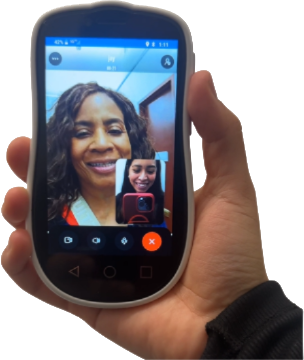
I’m going to show you exactly how this amazing P Phone app works. It’s quick, easy, and a great way to stay
connected.
"First things first: head over to your app store—whether that’s Google Play or
the Apple App Store—and type in 'Pee Phone.' Go ahead and hit download."
"Once the app is open, you’re going to create your account. Start by entering
your full name. Next, look for the dropdown flag icon—tap that to select your
country—and then enter your phone number."
"After you submit, you’ll receive an OTP verification code via text message.
Type that code into the app to verify your identity. To keep your account secure,
you'll then sign in with your phone number and create a unique four-digit
passcode."
"Now for the fun part! Once you’re inside the app, you’ll want to sync your
content so you can start connecting.
For Contacts: Tap the blue ‘Synchronize’ button in the Contacts section.
For Gallery: Tap the blue button in the Gallery section to sync your photos.”
I’m going to show you exactly how to get the most out of your new P
Phone.
It’s simple, secure, and built to keep you connected.
"Before we dive in, make sure you’ve registered
and installed the Photon App on your primary
smartphone. This is what links everything together."
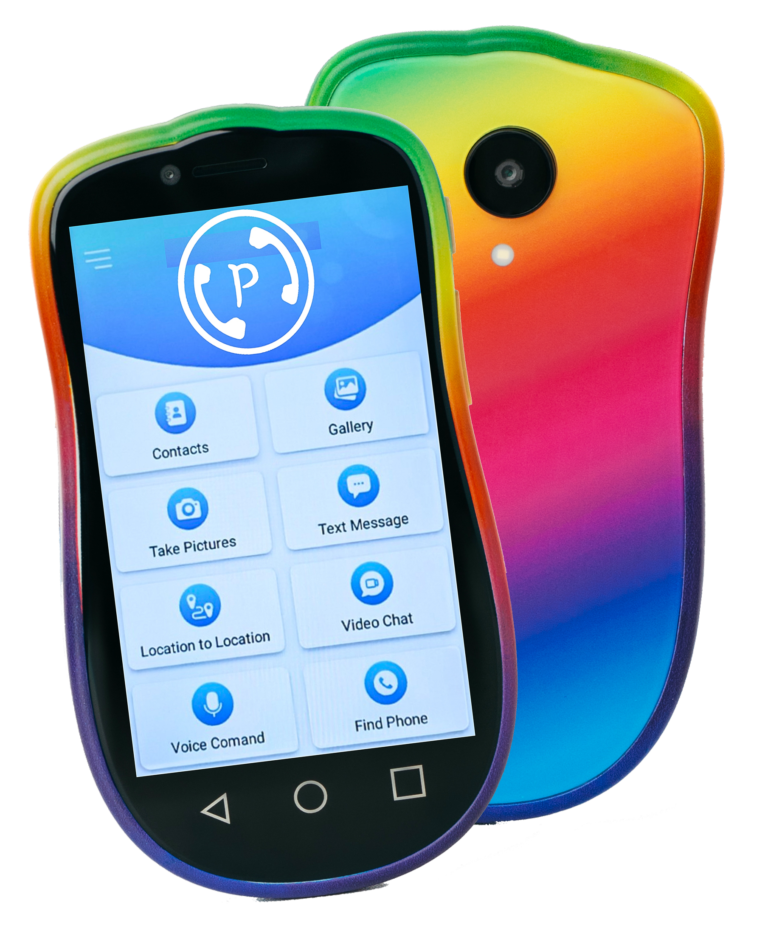
"Once you have your P Phone ready, open the
Photon App. Enter your registered phone number
and your unique four-digit passcode. Just like that,
you’ll see eight easy-to-use functions pop up,
allowing you to talk, text, and video chat instantly."
"One of the coolest features is the automatic
sync. Whenever you take a photo with your Pee
Phone, it automatically syncs directly to your gallery
in the Photon App. That means you can view all your
pictures right on your main phone without any extra
steps!"
"Need to get somewhere? You can navigate
easily using built-in Maps. Plus, for added peace of
mind, you can allow trusted contacts to follow your
location. It even includes a 'Find My Phone' feature
that’s incredibly easy to use if you ever misplace
your device."
“The PPhone is designed to be simple, smart,
and reliable. Enjoy your new device, and thanks for
ordering!”
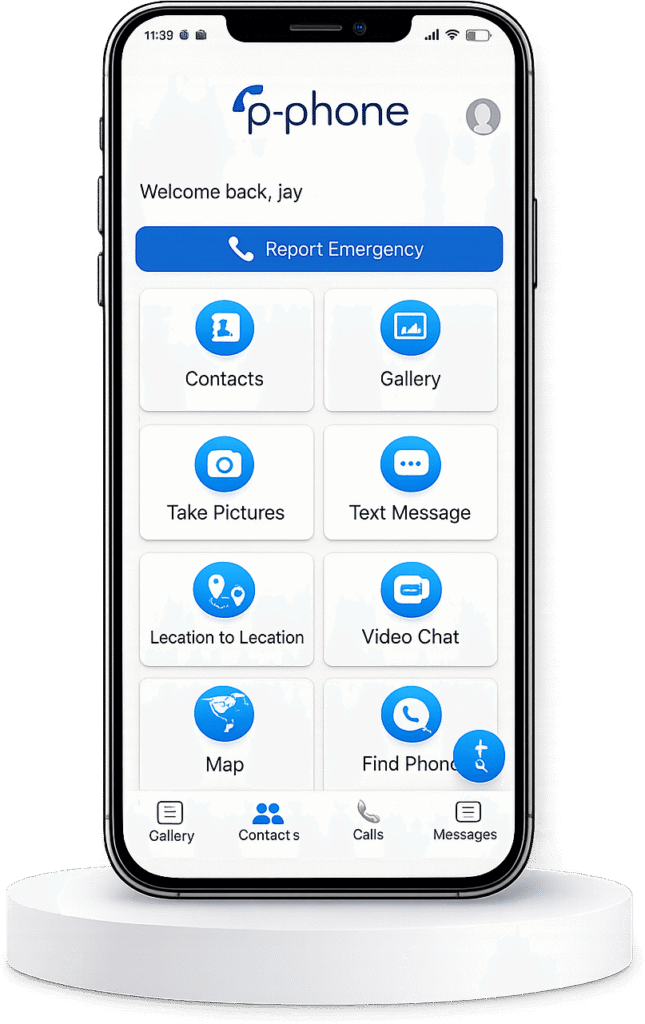
Report Emergency
Access all your contacts from your main phone
Take pictures and they appear on your main phone galley
Share your location with your contacts
Maps that make navigation a breeze. live traffic updates and route suggestions
Access your galley from your main phone
Text anyone in your contacts
Video chat with anyone in your contacts in your contacts
Find your main phone anytime
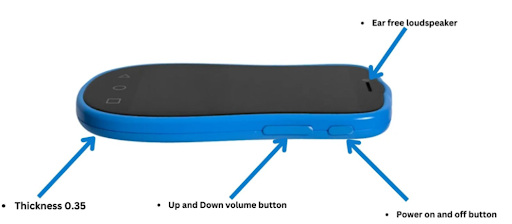
Some facts about product
The P-Phone app is already live and loved!
Linda Lanns, Google Play
☆☆☆☆☆
This week during hurricane Beryl, in
Livingston, TX my children were without
power for days. Our only communication
method was via the Phoneado APP. Our
calls were crystal clear. Kudos to
Phoneado.
Rashida Wone, Google Play
☆☆☆☆☆
I live in a rural area where connections are bad and phone calls drop constantly. I have not had that issue when using this app. Video was great and sound clear.
Classybitcoin, Apple Store
☆☆☆☆☆
I was on the phone talking to my sister in Cancun and the app is very clear. We talked for over 1 hour without any interruptions.
Margaret 1946, Apple Store
☆☆☆☆☆
Honestly this might be the best thing my grandma and me have come in contact with. I definitely think that you should get this app – it really helps out.
Mundelein IL, Apple Store
☆☆☆☆☆
I have an iPhone, my sister has an Android. We can now easily video chat with each other!
DrDR1285, Dec 22, 2024
☆☆☆☆☆
My friend ran out of data in the hospital and contacted me using the app. Love it! Great for families.